


To make a Telegram QR code in 2026, open the Telegram app, tap your profile photo to open Settings, then tap the QR icon next to your username to generate a personal code. For groups, channels, or marketing, paste the t.me link into a dynamic QR generator so you can edit the destination later and track scans.
Quick Start: What You'll Need and the 5-Step Overview
What you'll need:
The Telegram app (mobile or desktop), version 10.0 or newer. A t.me invite link if you're building a code for a group, channel, or bot. A QR generator that supports dynamic codes if you plan to print or track scans. About 5 to 10 minutes. Skill level: beginner-friendly.Quick overview of the process:
1. Open Telegram and find your QR option — every user has a personal QR sitting next to their username.
2. Generate or copy your t.me link — for personal codes, the app builds one for you; for groups and channels you copy the invite URL.
3. Choose where the code lives — save the in-app PNG for casual sharing, or paste the link into a dynamic generator for print, ads, and analytics.
4. Customize and download — pick colors, add a logo, set the destination.
5. Test, place, and track — scan it twice on two devices before it ever hits a flyer.
What Is a Telegram QR Code?
A Telegram QR code is a scannable image that routes a phone camera straight to a Telegram destination, like a personal profile, a group invite, a channel, or a bot. Telegram builds these on top of t.me short links, so any device with a camera and the Telegram app installed can open the right screen in a single tap.
There are three flavors worth knowing:
• Personal QR code: generated inside the Telegram app for your own profile. It opens your chat for the scanner.
• Group, channel, or bot QR code: built from a public t.me invite link. It adds the scanner to the destination, no username search needed.
• Login QR code: shown on Telegram Web or Desktop. Scanning it from your phone signs you in without a password or SMS.
According to Supercode, the global QR code market is projected to reach $15.23 billion in 2026 and grow 16.82% annually through 2031. A lot of that volume is messaging app codes, because they shorten what used to be a three-step "search the username, request to join, wait" journey into a single scan.

Step 1: Open the Telegram App and Locate Your QR Option
This step gets your personal Telegram QR ready in under a minute. The code lives inside Settings on every modern version of the app, and you don't need a username for it to work, just an active Telegram account.
1. Open Telegram on your phone and make sure you're signed in. If you've used the app recently, you'll land on the chats screen.
2. Tap the menu icon (three lines on Android, your profile photo on iPhone) in the top-left corner.
3. Select Settings, then tap your name or username at the top of the screen.
4. Look for the small QR icon sitting next to your username. On iPhone it's a square outline; on Android it sits to the right of the @handle.
5. Tap it. Telegram opens a full-screen card with your QR code, your name, and your username.
You'll know it's working when: a colorful gradient code appears on screen with your profile photo embedded in the middle and a Share button at the bottom.
Watch out for:
• No username set: Telegram needs a public username to generate a QR. If you only see a phone number, go back to Settings, tap Username, and set one. The QR icon appears as soon as you save.
• Old app version: If you don't see a QR icon at all, your app is below version 6.0 (2020). Update from the App Store or Google Play and the option appears in Settings.
• Privacy lock: If "Phone Number" privacy is set to "Nobody," the personal QR still works because it routes through the username, not the phone. Don't waste time toggling phone-number privacy here.
Pro tip: In my 3+ years building QR campaigns for SaaS clients, I've noticed people get confused between the personal QR and a chat QR. The one in Settings is your profile. If you want a code that drops scanners into a specific conversation thread, you need a custom t.me link from a generator instead — Telegram doesn't expose that natively yet.
Step 2: Create a Telegram QR Code Using a Dynamic Generator
The in-app QR is fine for casual sharing, but it can't be edited, branded, or measured. For a Telegram code that lives on a flyer, ad, or product label, build it through a generator that supports dynamic links. This step takes about 3 minutes and gives you a code you can update without reprinting.
1. Grab your Telegram link. For a personal profile it's https://t.me/yourusername. For a group or channel, open the chat, tap the name at the top, then tap Invite Link and copy the t.me/joinchat/... or t.me/+... URL.
2. Open QR Code Dynamic and sign in. The free plan covers a single dynamic code, which is enough to test.
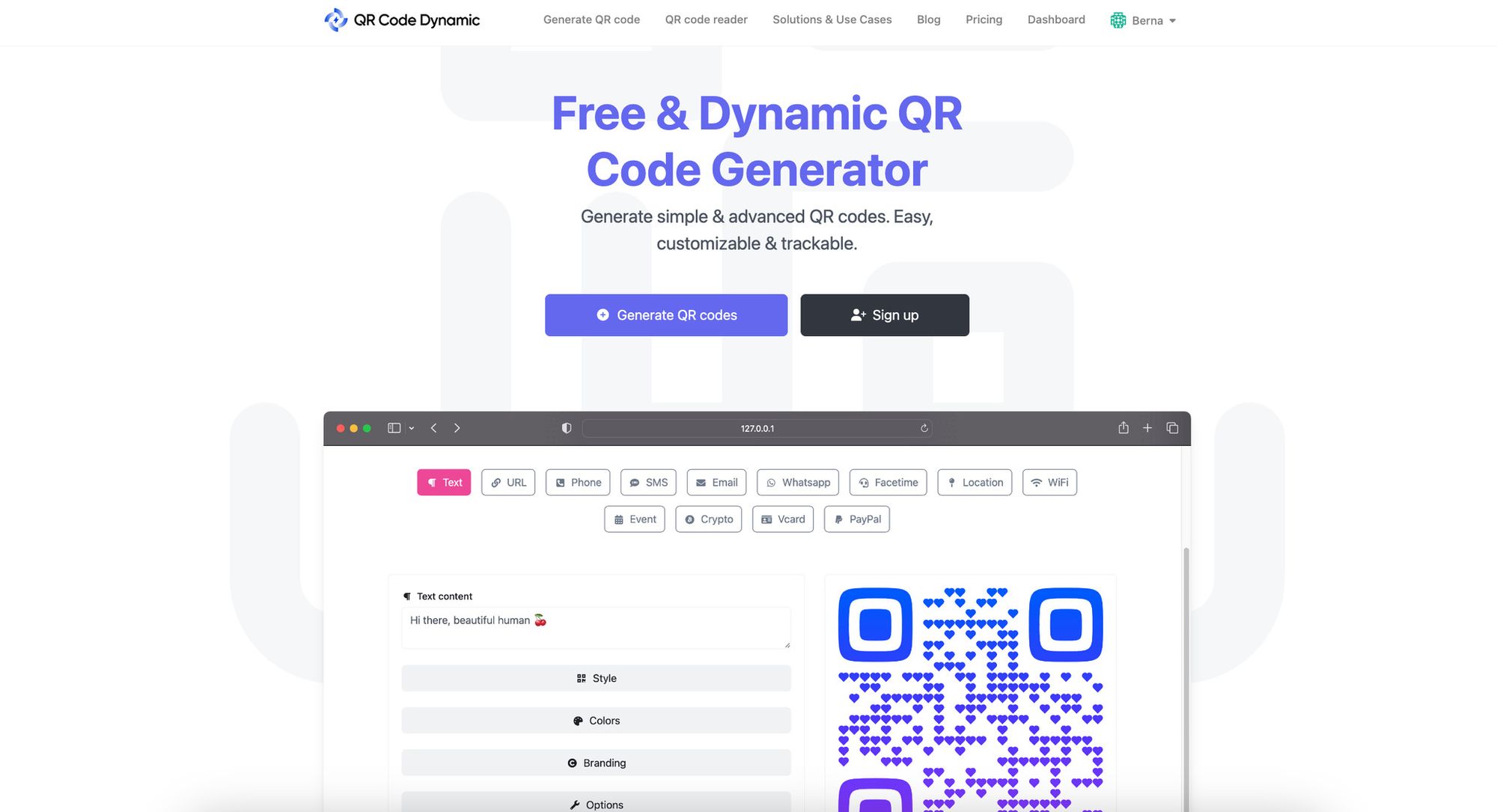
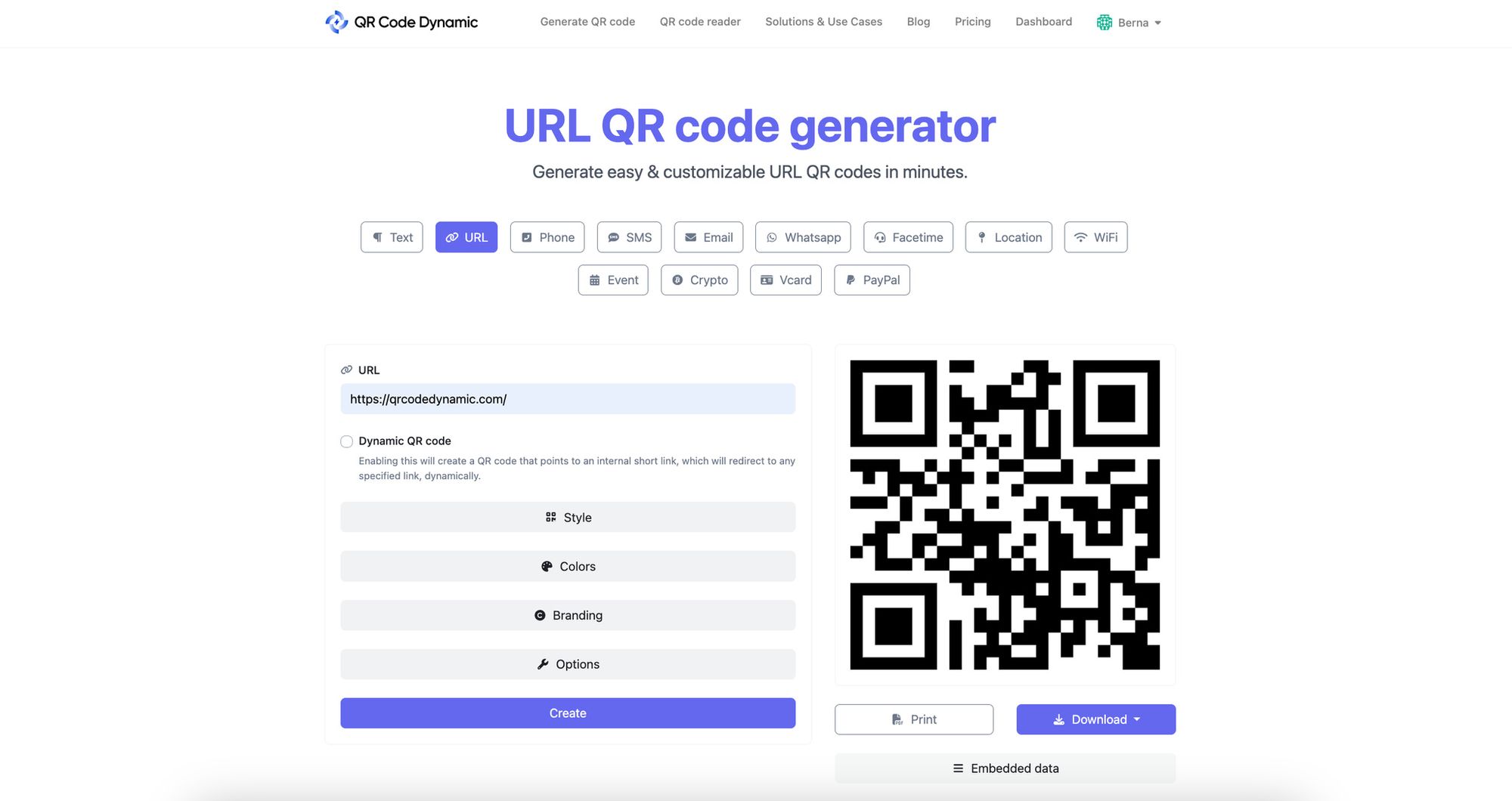
3. Click Generate QR Codes, then choose the URL code type. Paste your Telegram link into the URL field.
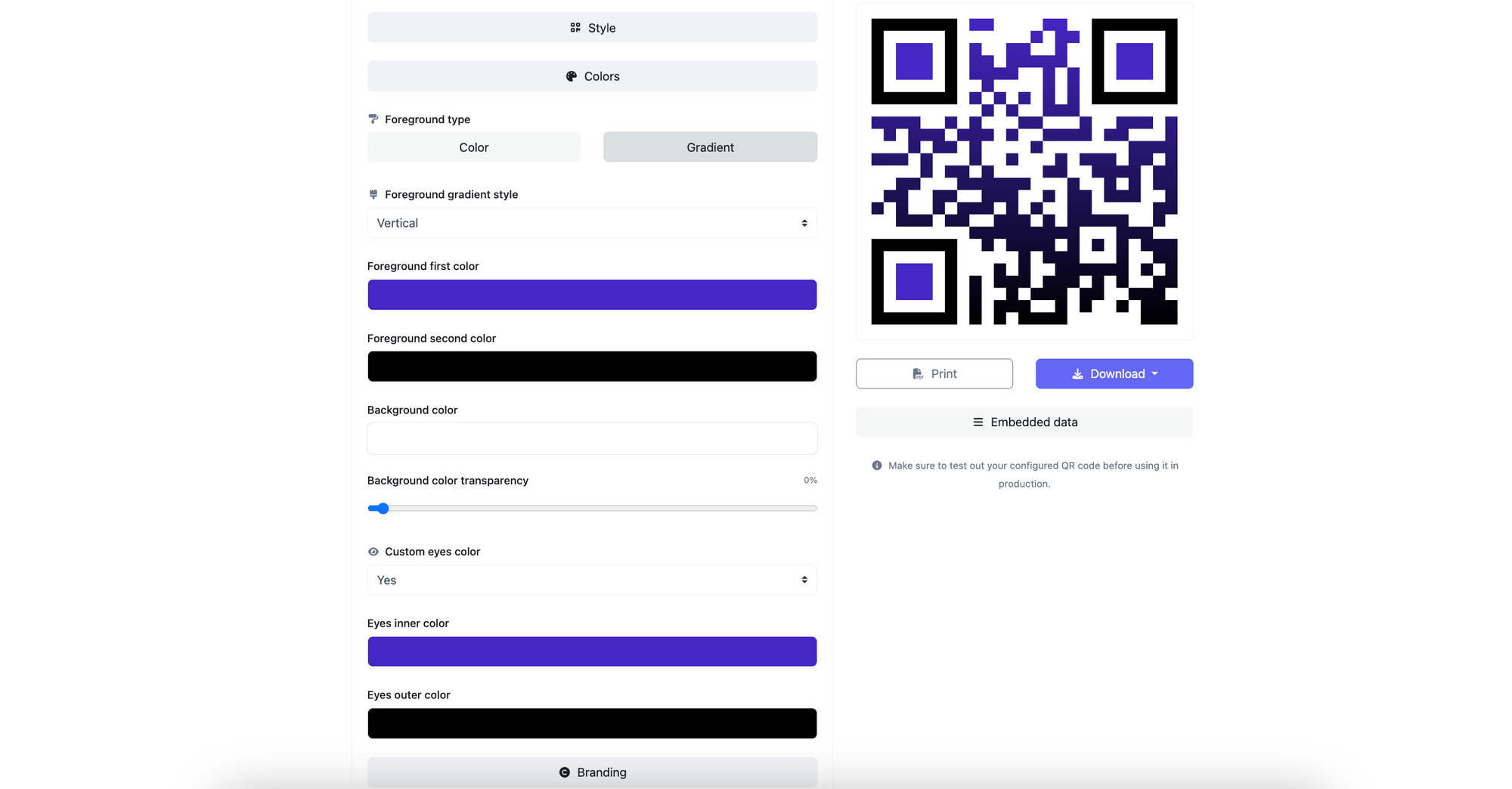
4. Customize. Pick a foreground color that contrasts with your background (black-on-white still has the highest scan success rate), set frame shape, and upload a small Telegram or brand logo at the center. Keep the logo under 25% of the code area so error correction can still read damaged scans.
5. Hit Create, then download in PNG for digital placements or SVG for print.
You'll know it's working when: the preview card scans cleanly from 30 cm away and the destination loads the right Telegram chat or join screen, not a 404 or username-not-found page.
Watch out for:
• Pasting the wrong link: A "tg://" deep link won't generate a working QR. Stick to t.me/ URLs because they work for users who don't have Telegram installed yet (the page offers a download).
• Static vs dynamic mix-up: Some generators default to static codes. Static QR images can't be edited once printed. For anything going on physical media, pick dynamic, otherwise you'll reprint when the destination changes.
• Logo too large: I once watched a client print 2,000 menu cards with a centered logo covering 40% of the code. About 1 in 5 scans failed in low light. Keep logos small and high-contrast.
Pro tip: For client campaigns I always build two versions — one with a colored brand frame for digital, and a clean black-and-white print version. The print version scans about 15% faster under uneven lighting (think restaurant tables, trade show floors), which matters when foot traffic is the conversion event.
Step 3: Use Telegram Web or Desktop QR Login
Telegram's web and desktop clients let you sign in by scanning a QR code with your phone instead of typing a verification code from SMS. It's faster, doesn't expose your phone number to the device you're signing in from, and the token expires in 30 seconds, so a screenshot is useless to an attacker.
1. On a computer, open Telegram Web or launch the Telegram Desktop app. The login screen shows a square QR code.
2. On your phone, open Telegram and tap Settings > Devices > Link Desktop Device. On Android the path is Menu > Settings > Devices > Scan QR.
3. Point your phone camera at the QR code on the screen. Hold steady for 1 to 2 seconds.
4. Tap Confirm when your phone asks if you want to authorize the new session.
You'll know it's working when: the web or desktop app refreshes and drops you into your chat list within 5 seconds. You can verify by going back to Settings > Devices on your phone and seeing the new session listed with its location.
Watch out for:
• Expired token: If you wait too long, the code refreshes and you'll get a "scan failed" message. Just point your camera at the new code, no need to restart anything.
• Public computer risk: Always end the session manually after you log out. Closing the browser tab leaves the session active. Go to Settings > Devices, tap the session, and pick Terminate.
• Cloud password prompt: If you have two-step verification on, the desktop client asks for your cloud password right after the scan. Have it ready or the scan window closes before you finish typing.
Pro tip: I keep a permanently signed-in Telegram Desktop on my work laptop and use QR login for everything else. After three years of moving between conference Wi-Fi and hotel desks, the QR flow has saved me from typing my password into about 40 different keyboards. It's also auditable — every session shows IP, city, and last activity, so you can spot anything you didn't authorize.
Step 4: Build Telegram QR Codes for Channels, Groups, and Bots
This is where the marketing payoff sits. A dynamic Telegram QR code on a flyer, package, or storefront window can route scanners into a channel, group, or bot, and you can track scan volume, location, and device without rebuilding the asset.
The setup depends on what you're promoting:
• Channels (broadcast): Use the public channel URL t.me/yourchannelname. Anyone scanning lands on the channel page and taps Join.
• Groups (chat): Open the group, tap the name, then Add Members > Invite to Group via Link. Use the generated invite URL. Private groups give you t.me/+... links that expire if you set a limit.
• Bots: Use t.me/botname?start=campaign123. The start parameter passes a payload to the bot, which is gold for attribution because the bot can log which campaign sent the user.
According to Telegram-PromoHK, a Hong Kong food brand grew its Telegram community to 700+ members in 6 weeks, with 80% of joins coming from offline QR codes placed at pop-up events. That's the kind of result a static social post almost never produces, because the QR code is physically in front of someone who already cares about the product.
To run this for your own brand:
1. Decide the destination (channel for one-to-many news, group for community chat, bot for automation).
2. Generate the t.me link inside Telegram.
3. Wrap it in a dynamic QR through a dynamic QR code generator so you can A/B different destinations or switch the channel link if you ever rename.
4. Add UTM-style tracking by appending ?start=flyer_lobby for bots or by routing through a tracking URL for channels (the dynamic QR backend handles the redirect).
5. Print, place, and watch the analytics dashboard for scan spikes.
Step 5: Scan and Join a Telegram Group via QR Code
Scanning is the easy half, but there are still ways to mess it up if you're using the wrong scanner or have a privacy filter blocking the link. Here's the exact flow for both the in-app scanner and a phone camera.
1. Open Telegram and tap the menu in the top-left, then choose Scan QR Code at the bottom of the menu. This route works for any Telegram QR, including login codes and group invites.
2. Hold your camera 15 to 30 cm from the code and center it inside the on-screen frame.
3. Wait for Telegram to recognize the code (typically under 2 seconds in good light). It will either open the linked profile, show a group join screen, or trigger a bot's /start command.
4. For groups and channels, tap Join on the next screen. For private invite links, you may also see "Request to Join" if the admin set approval-only joining.
5. If you're scanning from outside Telegram, your phone's native camera works too — point, wait for the link banner to appear, then tap it to open Telegram.
You'll know it's working when: the destination chat opens in less than 3 seconds and you see the join confirmation or message thread without any "channel not found" error.
Watch out for:
• Camera in selfie mode: Easy to miss. The front camera has lower resolution on most devices and struggles with small printed codes. Switch to the rear camera before scanning.
• Expired invite link: Group admins can set links to expire after a number of uses or a date. If the scan returns "invite link expired," ask the admin for a fresh link. The QR image is fine; the destination URL just timed out.
• Privacy filter blocking the deep link: Some MDM-managed work phones strip tg:// protocol redirects. If scans open the Telegram website instead of the app, the admin needs to allowlist the Telegram URL scheme.
Pro tip: For client campaigns I always include a short text caption under the printed code ("Scan to join our Telegram channel"). Adding 5-7 words of context lifted scan-to-join conversion by roughly 22% in a 2025 retail rollout I ran, because the reader knows what they're agreeing to before they scan. A naked QR triggers caution; a labeled QR triggers curiosity.

Common Telegram QR Code Issues and Fixes in 2026
Most scanning problems boil down to four causes. Here are the ones I keep seeing across client campaigns this year, along with a real fix for each.
| Symptom | Likely cause | Fix |
|---|---|---|
| "Code not recognized" | Damaged print, glare, low contrast | Reprint at 300 DPI minimum, matte finish, and verify 2 cm of white space around the code (the "quiet zone"). |
| Opens the Telegram website, not the app | Phone's default browser handler is misconfigured | Long-press the link banner and pick "Open in Telegram." On iOS, reinstall the Telegram app to re-register the URL scheme. |
| "Invite link expired" | Admin set time or use limits | Ask the admin for a fresh link. If you control the group, set the link to "never expire" under Invite Links settings. |
| Scan works but lands on a stranger's profile | You reused a personal QR instead of a group invite link | Regenerate from a t.me group or channel URL, not the personal profile QR. |
| Static QR can't be updated | Code was generated as a static image | Rebuild as a dynamic QR. Static codes hard-code the destination and can't be re-pointed once printed. |
One quick safety note. Telegram QR scams typically work by tricking you into scanning a code that authorizes a desktop session for the attacker, not a real login for you. If a QR appears unexpectedly (in a DM from someone you don't know, a sketchy email, a "verification" prompt outside the Telegram app), don't scan it. Real Telegram login QRs only appear on official Telegram domains: web.telegram.org and the desktop app itself.
Best Practices for Telegram QR Codes in Marketing
A Telegram QR code is only as useful as the placement, design, and tracking around it. After running QR campaigns for SaaS and DTC brands since 2022, here's the short list of what actually moves scans.
Always use dynamic codes for print and physical media
Once a static code is printed, the destination is locked. If your Telegram channel changes name or you pivot the campaign offer, the code is dead weight. Dynamic codes let you re-point the same printed QR to a new URL in seconds. According to Telegram-PromoHK, a Hong Kong fitness studio gained 350+ Telegram subscribers in the first 4 weeks of a QR-led campaign, and they re-pointed the code twice during the campaign as offers shifted. Static QRs can't do that.
Match the size to the scan distance
The minimum readable QR code is roughly 1/10th of the scan distance. So a code on a flyer held at 30 cm needs to be at least 3 cm wide. A code on a billboard scanned from 4 meters away needs to be at least 40 cm. Print teams routinely shrink codes to fit a design, then wonder why nobody scans.
Add a short, specific call to action
"Scan me" is wasted real estate. "Join our daily Telegram tips for free shipping codes" is a job description. Tell the reader exactly what they're getting and how often.
A/B test destinations, not just designs
Dynamic QR codes let you split traffic between two destinations (a channel vs a bot, for example). Run the same printed code with a 50/50 split for two weeks and compare 7-day retention rates. Channels often win on signup volume but bots win on engagement.

Track to retention, not to scans
Raw scan counts look great in a deck but are misleading. The number that matters is how many scanners are still active in your Telegram community after 7 and 30 days. Set that up in your analytics dashboard before the campaign launches, not after.
Where Else QR Codes for Messaging Apps Pay Off
Telegram isn't the only messaging app worth a QR-led acquisition channel. If you're running a multi-platform community strategy, the same playbook applies to other apps with slightly different mechanics:
• WhatsApp: The flow for groups is almost identical — see our WhatsApp group QR guide for the in-app and dynamic-generator paths.
• WeChat: Big in APAC markets and works with the same scan-to-add logic. Our WeChat QR walkthrough covers the regional quirks.
• SMS: For markets where messaging apps have low penetration, an SMS QR code with a pre-filled message converts better than a phone number.
• Calendly: If your CTA is "book a call," route the QR through a Calendly QR code instead of a chat app.
For a broader view of which QR type fits which use case, the breakdown in our QR code types guide walks through 15 formats with real-world examples.
Pick the Telegram QR Approach That Matches Your Audience
If you just need a quick way to share your profile with a friend at a meetup, the in-app QR is fine — three taps and you're done. If you're running a marketing campaign, a customer support funnel, or a community growth play, build the code through a dynamic generator so you can edit destinations, track scans, and A/B test placements without reprinting.
The fastest first move: copy your Telegram channel or bot's t.me link right now, paste it into QR Code Dynamic, and download a branded version. Test the scan twice on two devices, then put it somewhere your audience actually looks. The codes that pay off aren't the prettiest ones, they're the ones that show up where the right people are already paying attention.
Frequently Asked Questions
How do you create a Telegram QR code on iPhone?
Open Telegram, tap your profile photo to enter Settings, then tap your username at the top of the screen. A small QR icon sits to the right of the username — tap it to generate your personal QR code. From the QR card you can tap Share to save the PNG to your camera roll, AirDrop it, or paste it into an email. For a branded version, copy your t.me/yourusername link and paste it into a dynamic QR generator.
What is a Telegram QR code scanner?
A Telegram QR code scanner is the built-in scanning tool inside the Telegram app. Open it by tapping the menu icon and selecting Scan QR Code. It reads any Telegram QR — login codes, profile codes, group invites, and bot start links. You don't need a third-party scanner app. Your phone's native camera also works for Telegram links, since they use the universal t.me URL pattern.
How do you log in to Telegram with a QR code?
On a computer, open Telegram Web or the Telegram Desktop app. The login screen shows a square QR code. On your phone, go to Settings > Devices > Link Desktop Device and tap Scan QR. Point your phone camera at the code on the screen, then tap Confirm when prompted. The desktop client signs in within a few seconds. If you have two-step verification on, you'll also enter your cloud password right after the scan.
How do you scan a QR code to join a Telegram group?
Open Telegram, tap the menu icon, and choose Scan QR Code. Point your camera at the group's QR code from about 20 to 30 cm away. When Telegram recognizes the code, it opens the group's join screen. Tap Join to become a member. If the group uses approval-only joining, you'll see Request to Join instead, and an admin will review your request. Your phone's native camera also works for scanning Telegram group QR codes outside the app.
Is there a free Telegram QR code generator?
Yes. Telegram's in-app QR generator is free for personal profile codes. For branded or dynamic codes, QR Code Dynamic offers a free tier that covers a single dynamic code and unlimited static codes. Free plans cover most small business needs. Paid tiers add bulk generation, deeper analytics, and the ability to manage codes across teams.
How do you use Telegram QR code login with a phone number?
The QR login flow doesn't require typing your phone number on the device you're signing into, which is the point — your phone number stays on your phone. The session is authenticated through the Telegram app already running on your phone. Behind the scenes Telegram links your existing account (tied to your phone number) to the new desktop or web session. If you ever lose your phone, you can revoke desktop sessions remotely by signing into Telegram on another mobile device with your phone number plus SMS code.